


Are you struggling to add crucial data to your PDFs without disrupting the flow of existing content? If yes, you are in for a treat! In this article, we will dive into how to add pages to PDFs for a more organized PDF workflow. From adding blank pages to inserting pages from other files, we’ve got you covered.
So, let’s dive in and make your life easier!
Why Do You Need to Add Pages to a PDF?
Alright, folks! Let’s start by exploring why you need to add pages to PDFs. To understand it better, imagine you have finalized a project proposal in PDF format when your client requests to add some additional data. To maintain the document’s integrity and completeness, adding pages to the PDF becomes essential.
But it does not stop there! Below, you will find some more reasons to insert pages to PDFs.
- Organizing Content: Adding pages lets you enhance the document structure to make it easier for readers to follow the flow of information within your PDF.
- Expanding Content: When your PDF needs more content, inserting pages accommodates additional text, images, or data without compromising the overall layout.
- Combining Content: You can combine multiple smaller documents in one comprehensive file by inserting them in a PDF file.
- Ensuring Continuity: Add pages to maintain a consistent flow in your document to avoid abrupt transitions or disruptions in the reader’s understanding.
- Effective Communication: Add pages to your PDFs to include missing details or additional information, ensuring your documents convey the intended message effectively.
No matter the reason for adding pages to PDFs, it can be achieved seamlessly with the right tools at hand. Let’s find out how to insert pages to a PDF with UPDF.
How to Insert a Blank Page to PDF with UPDF?
Imagine a world where you can edit all the aspects of a PDF, from annotating, converting, compressing, performing OCR, and even chatting with PDFs. Well, dream no more! With UPDF, the possibilities are endless.
Let’s dive in and find out how to add blank pages to those pesky PDF documents with UPDF.
Step 1
First of all, make sure to download and install UPDF on your PC. Then, launch UPDF and hit the Open File button to open your file.
Step 2
After your file is opened, navigate to the left sidebar and click on the Organize Pages option.
Step 3
Now, you will be able to see a grid view of all the pages of your PDF and a toolbar on the top. Here, select the page that should precede the new blank page.
Step 4
Now, click on the Insert option from the top toolbar. This will give you two ways to add pages to your PDF. To insert a blank page, click on the Blank Page option.
Step 5
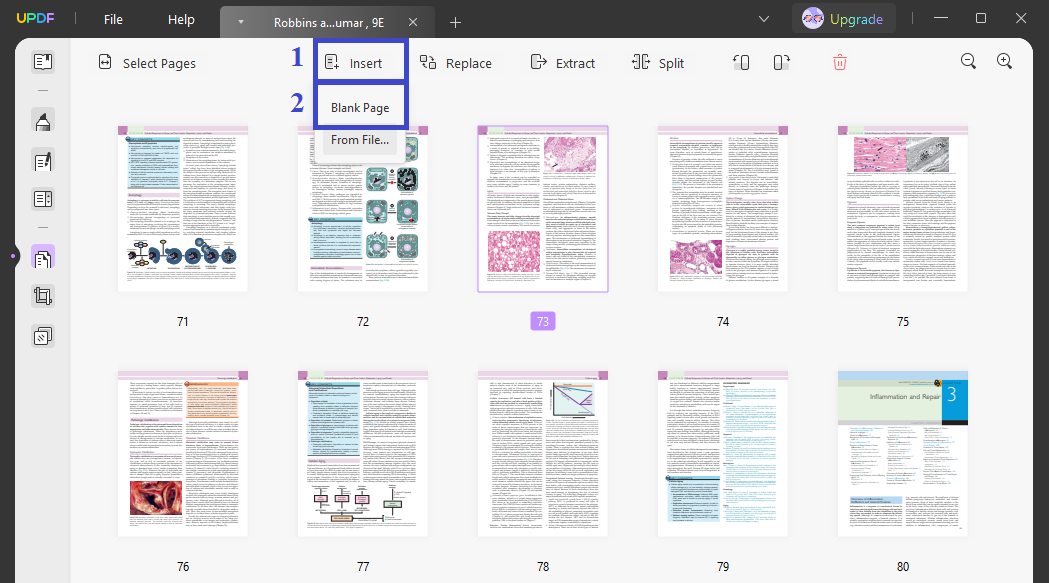
After clicking the blank page, UPDF will automatically add a blank page next to the page you selected.
That’s all; you have successfully added a blank page to your PDF. Let your creativity flow like a cascading waterfall, and fill in the blank page with all the data you desire!
How to Insert Pages from Another PDF File with UPDF?
Alright, folks! You have already learned how to add blank pages to PDFs with UPDF. But UPDF is not your one-trick pony. If you are looking to insert pages to PDF from another PDF file, UPDF will do that in a breeze.
Let’s dive in and find out how!
Step 1
Launch UPDF on your device and open your desired file. Now, click on the Organize Pages button from the left sidebar.
Step 2
Now, select the page that should precede the pages to be added to your file. Next, click the Insert option from the top toolbar and select From File.
Step 3
In the pop-up window, select your desired file. After adding the file from your device, UPDF automatically adds all the pages of the file to your PDF.
And you’re all done! You have successfully added pages from another file to UPDF. Want to add only specific pages in your PDF? No worries! Select the page you wish to delete and hit the bin icon from the toolbar to delete it. UPDF will handle the rest!
How to Insert a PDF to Multiple PDFs with UPDF?
If you are looking to insert a PDF into multiple PDFs at once, you are in for a treat! UPDF’s Batch PDF feature lets you insert, combine, convert, print, encrypt, and bate-number your PDFs at once!
Let’s dive in and find out how to do it.
Step 1
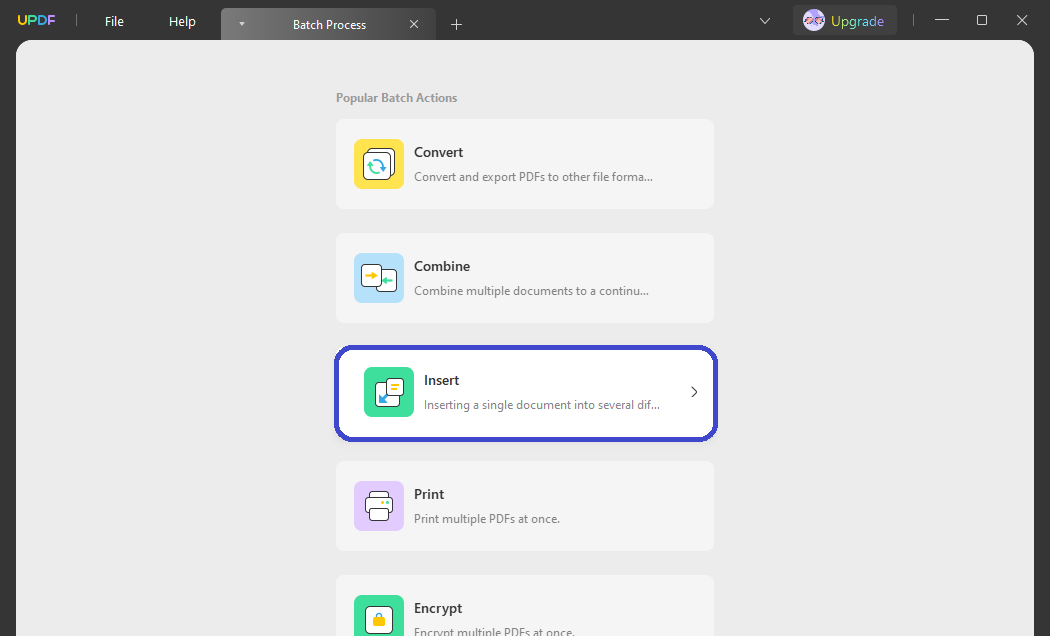
Launch UPDF on your device and click on the Batch option on the left side of the interface.
Step 2
Next, click on the Insert option from all the available options to batch-insert your PDFs.
Step 3
In the next window, hit the Add Files option to import all the files you wish to insert a PDF to. You can select files stored on your device, opened in UPDF or full file folders!
Step 4
Once files are imported, hit the Insert File option in the right panel to add the PDF you wish to insert. Next, set the Location where the PDF should be inserted in each of the imported files.
Step 5
Now, click the Apply button located on the bottom-right of the screen to insert PDF to imported files.
That’s it! It is that easy to insert a PDF into multiple PDFs at once with UPDF. So, give it a try, and it might be the only PDF organizer you’ll ever need!
How to Choose the Best PDF Organizer and Editor?
When it comes to choosing the best PDF organizer and editor, UPDF is a cut above! UPDFs PDF organizer tool not only lets you add pages to a PDF but also adds pages from other PDF documents. With its batch insertion capabilities, you can add pages to multiple files at once and save hours of manual editing and retyping.
Plus, UPDF offers a one-stop PDF management across all platforms. Whether you are a Windows, Mac, Android, or iOS user, UPDF will transform your PDF tasks into a breeze!
Want to know what other nifty tricks UPDF has up its sleeves? Let’s dive in and find out!
- Efficient PDF Editor: UPDF lets you edit all elements of the PDF, from adding links to editing text, images, headers, footers, watermarks, and backgrounds.
- Reliable AI Assistant: Want to understand your documents better? Need a grammar guru? UPDF AI lets you rewrite, summarize, explain, and translate from over 38 languages with unbeatable precision.
- Delightful PDF Annotator: From adding comments to highlighting text with squiggly lines, shapes, stamps, and 100+ stickers, UPDF has a solution for all of your annotating needs.
- Accurate PDF Converter: UPDF lets you convert PDFs to and from a diverse range of formats, including Word, Excel, PPT, Text, JPEG, PNG, GIF, and more!
- Credible PDF Protector: Share your PDF securely with UPDF’s robust protection with encryption, redaction, and password protection. Plus, you can set printing and editing permissions!
- Universal OCR Tool: UPDF’s AI-powered OCR lets you convert those pesky scanned PDFs to editable PDFs from over 38 languages!
Plus, UPDF lets you compress PDFs, fill and sign forms, and store PDFs in its cloud storage! So, why wait? Try UPDF now for an unbeatable PDF organizing and editing experience!
Conclusion
Say goodbye to the hassle of organizing PDFs with endless hours of retyping and editing! UPDF is your one-stop PDF organizer and editor solution across all platforms. Whether you need to add pages to PDFs or experience snazzy and rich PDF management, UPDF does it all. So, wait no more! Get UPDF now to supercharge your PDF workflow with its versatile capabilities.
